Supported Image Formats and Loading Workflow
The Browser-Based OCR Tool is a dedicated utility for extracting textual information from image files stored on your local device.
The application accepts common static image formats natively supported by modern web browsers, specifically PNG, JPEG, WebP, and GIF.
You can load an image by dragging and dropping it into the designated drop zone on the left-hand "OCR control" panel, or by clicking the area to open the system file selection dialog.
The tool processes one image at a time and does not support simultaneous batch processing of multiple files.
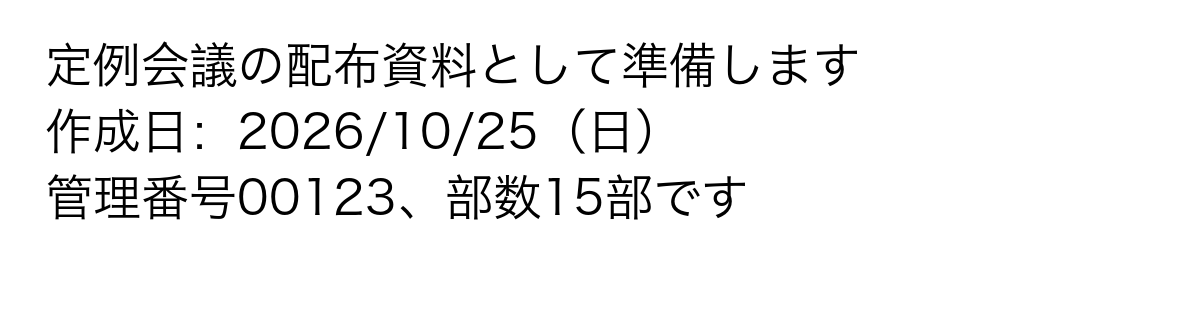
Once an image is selected, its filename and file size in megabytes are displayed in the information panel. Simultaneously, the "Image preview" section renders a visual preview generated within the browser.
This allows you to verify that the correct image was loaded and that the text is legible before initiating extraction. PDF files are not directly supported; to extract text from a PDF, take a screenshot of the target page and save it as an image before loading it into the tool.
Language Selection: Japanese and English Options
To extract text accurately, the OCR engine must be instructed which language script to evaluate. Selecting the recognition language is a required configuration step before running extraction.
The interface provides two dedicated language options: "Japanese" and "English". The internal language code defaults to jpn, prioritizing Japanese character recognition.
Clicking "English" switches the engine parameter to eng, optimizing recognition for the Latin alphabet and English vocabulary.
Crucially, this tool does not support simultaneous bilingual recognition (such as combining jpn+eng). The underlying engine receives only a single language code selected by the user.
If an image contains both languages, you must select the dominant language or the script you prioritize extracting.
Running extraction with the Japanese language setting on an English document may lower recognition accuracy or produce misrecognized characters, though the engine can still recognize Latin characters.
Conversely, selecting English will fail to recognize Japanese text properly. Because the interface does not offer a combined bilingual recognition mode, selecting the primary document language is necessary for optimal results.
Multi-Stage Recognition Lifecycle
After loading an image and selecting the target language, clicking "Executing text extraction" starts client-side OCR processing.
The button label changes to "Analyzing..." and is disabled to prevent duplicate executions, while a progress overlay appears over the "Extracted result text" area.
Under the hood, the Tesseract.js library manages execution across several sequential stages:
"Starting OCR engine..." initializes the core extraction routine. "Loading OCR core library..." loads the WebAssembly core module into browser memory.
"Initializing API..." prepares the programmatic interface with the underlying core engine. "Preparing language training data (may take time on initial load)..." retrieves the required trained language model data (traineddata).
If the data is not yet cached in the browser, it is downloaded over the internet. "Recognizing text..." analyzes pixel data to identify characters.
The progress bar advances from 0% to 100% strictly during this recognition stage, reflecting processing progress rather than estimated remaining time.
When recognition reaches 100%, the status displays "Completed!", the progress overlay dismisses, and the recognized text populates the text area.
If an unhandled failure occurs during parsing, the operation halts and presents an error message. Note that changing languages or uploading a new image while processing is underway does not abort running background tasks, which may cause overlapping results.
Text Editing, Clipboard Copying, and Plain Text Export
Extracted text appears in the "Extracted result text" section in the lower right. This area is implemented as an editable HTML textarea, allowing you to insert, correct, or delete characters directly.
Current client-side OCR technology cannot guarantee 100% accuracy across every document. Faint lettering, unusual typefaces, and low contrast frequently cause misreadings.
Before using the extracted text elsewhere, compare it against the image preview to correct misrecognized characters, punctuation, or unwanted line breaks directly within the text area.
Corrected text can be exported using two output mechanisms:
First, click the clipboard copy icon in the upper right of the text area to copy the full content to your clipboard. When successful, the icon changes to a green checkmark for several seconds to provide visual feedback.
This simplifies pasting text into external editors or email drafts. Note that copy operations do not implement error catching for clipboard permission denials.
Second, click the download icon to export the edited text as a UTF-8 encoded plain text file (.txt) via the browser's download manager.
The output file is automatically named by taking the uploaded image's base filename and appending _text.txt, helping keep exported files organized.
Pre-Processing Recommendations for Improved Accuracy
This tool uses a lightweight client-side OCR engine running directly in the browser and omits automated preprocessing routines like auto-deskewing, adaptive contrast adjustment, and noise reduction.
Accuracy depends heavily on the visual quality of the input image. Taking steps to optimize your image beforehand significantly improves extraction quality.
First, prioritize resolution and character size. Low-resolution images with blurry edges or tiny font sizes prevent the engine from discerning stroke structures, leading to omitted or misread characters.
When capturing screenshots, zoom in on the source text to ensure sharp, distinct letterforms.
Second, maximize contrast. Low contrast between text and background (such as light gray text on white) hinders character boundary detection.
Increasing contrast or applying binarization in an external editor prior to upload helps the engine identify character contours.
Third, correct image orientation and tilt. Text lines rotated at an angle confuse the engine's horizontal and vertical layout parsers, resulting in scrambled reading orders.
Manually rotating images so that text lines run strictly horizontal before uploading ensures coherent text output.
Functional Limitations and Data Privacy Boundaries
Understanding the functional boundaries and privacy parameters of this tool is essential for effective use.
Functionally, the tool does not preserve document layout or table formatting. Complex tabular data or multi-column newspaper layouts are output as plain sequential text read from top to bottom and left to right.
Column alignment and cell grids are not retained. Furthermore, recognition models are tuned for standard printed typefaces; handwritten notes, stylized fonts, and vertical text orientations exhibit higher error rates.
From a privacy standpoint, this tool differs from cloud-based OCR services because all image parsing and character recognition occur entirely within your browser's WebAssembly memory.
The source image file is never uploaded to external servers for text extraction.
However, local image parsing does not mean the tool operates with zero network activity. Initial visits, cleared browser caches, or switching to an uncached language require fetching the Tesseract.js WebAssembly core, worker scripts, and language traineddata files from external CDNs.
Only the image recognition phase itself is strictly local. Because network requests occur for asset loading and surrounding web services, do not treat client-side processing as an absolute guarantee for processing sensitive identification cards or confidential records.